How to set up and use tap to pay on your phone
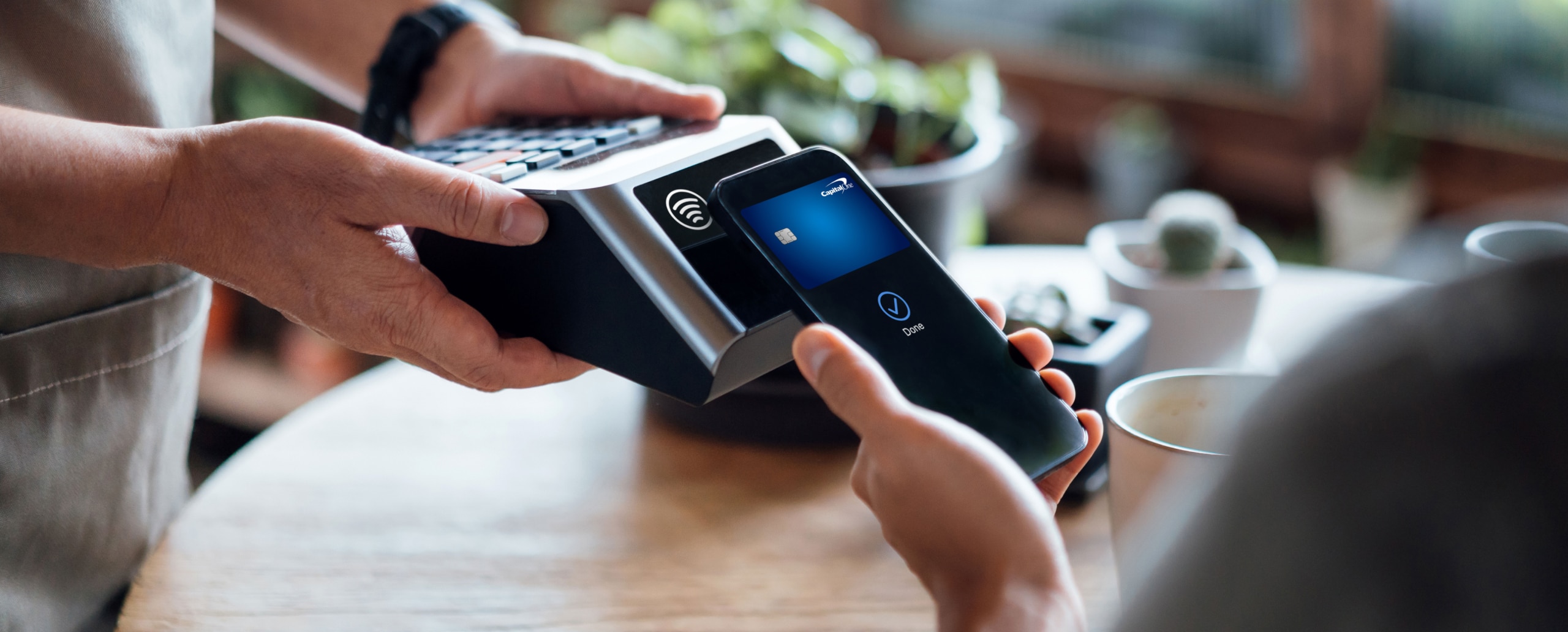
If you own a smartphone, you may already have the ability to make payments with it—even if you’ve never tried it before. Tap to pay lets you make contactless purchases by holding your phone near a compatible card reader using a digital wallet.
Keep reading to learn how to set up your mobile device and link your Capital One card so you can tap to pay with your phone.
What you’ll learn:
-
To set up tap to pay, you’ll need to add a credit or debit card to a digital wallet like Apple Wallet®, Google Wallet™ or Samsung Wallet®.
-
You can use your phone to tap to pay wherever you see the contactless payment symbol.
-
To use tap to pay, open your digital wallet and hold the back of your phone near a contactless card reader until the payment is confirmed.
-
Like contactless cards, phone payments use encryption to help make transactions more secure.

How to set up tap to pay on your phone
Setting up tap to pay on your phone is relatively easy, but there are a couple of steps you’ll need to take the first time.
While the exact steps may differ slightly depending on whether you use an iOS or Android device, the general setup process should be relatively similar across most mobile phone brands.
1. Set up your digital wallet
A digital wallet stores your payment information and allows you to pay with your phone in stores. Many smartphones already include a digital wallet app. If not, you can visit the app store to download a wallet supported by your phone’s operating system.
Once the appropriate wallet app is downloaded, you can use services like Apple Pay®, Google Pay™ or Samsung Pay® to tap your phone to pay.
2. Add your card and set your preferred payment method
Next, you’ll need to add and save a payment method, such as a Capital One credit card or debit card. Depending on which payment app you’re using, you might need to enter your card number by hand, or you might be able to take a photo of your card to have your card details automatically imported.
From there, follow any authentication prompts to verify your identity. Once your card details have been verified, you can set it as your default payment method within the app if you choose.
For certain digital wallets, Capital One cardholders may be able to add their cards from right within the Capital One Mobile app.
How to use tap to pay
You can pay with your phone in stores that accept contactless payments. Look for the contactless symbol on the card reader. It looks like four curved lines that increase in size from left to right.
To use your phone to make a payment, just follow these steps:
-
Unlock your phone and open your digital wallet. With Google Pay, you may not need to open the app. And with Apple Pay, you can open your wallet by double-clicking the side button on your phone.
-
If prompted, verify your identity by completing an additional security step. Depending on your digital wallet and security settings, this might include entering your passcode or using biometric authentication like Face ID (specific to iPhone users) or a fingerprint.
-
Tap or hold your device over the card reader. The back of your phone should be facing the reader.
-
Wait until you see a check mark or a “done” icon. This confirms the payment went through.
Tap to pay with a phone FAQ
Read on for answers to some frequently asked questions about tapping to pay with your phone.
How does tap to pay work?
Tap to pay uses near field communication (NFC) technology to securely transmit payment information when you hold your phone within a few inches of a payment terminal. This payment method helps protect your actual card number.
How can I pay with my phone using my Capital One cards?
To pay with your phone using your Capital One credit or debit card, simply follow the steps to link your card to your digital wallet. Then, set your Capital One card as your preferred payment method. Linking your Capital One card is a great way to ensure you continue to earn rewards on purchases made with your phone.
Is paying with your phone safe?
Speed isn’t the only benefit of using a digital wallet to pay with your phone. Digital wallets also help protect your personal information by using a process called tokenization, which replaces your card number with a unique digital token so your actual card number isn’t shared with merchants.
What if my phone isn’t working at checkout?
Phone payments use NFC technology to transmit payment information between devices. If NFC isn’t enabled on your phone, you may have to go into your device settings and turn it on manually.
Additionally, your phone may require an updated version of your operating system to use contactless payments. If you’re having trouble getting tap to pay to work, you may need to update to a more recent version.
Key takeaways: Tap to pay with your phone
Using your phone to tap to pay at checkout can be a fast and easy way to make purchases without swiping a credit card or even carrying your physical wallet. Plus, when you check out with your phone, your actual card number isn’t shared, which can help make transactions more secure than swiping or inserting your card into a credit card reader.
If you’re interested in using tap to pay on your phone, explore your options for digital payment and how to set one up to get started.