Eno browser extension discontinued: What this means for you
Summary
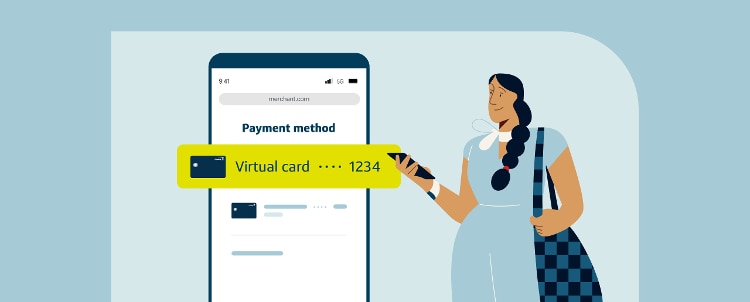
- For a similar experience to the Eno browser extension, you can create a unique virtual card for each merchant when you enable virtual cards on Chrome. Once enabled, Capital One instantly provides your virtual card to be automatically filled in at checkout and your virtual card information is never stored by Google.
- You can also create new virtual cards on the Capital One website or mobile app.
- You can continue to view and use any virtual cards you’ve previously created with the Eno browser extension through your Capital One account.
- Virtual cards created with the Eno browser extension will continue to work until they expire.
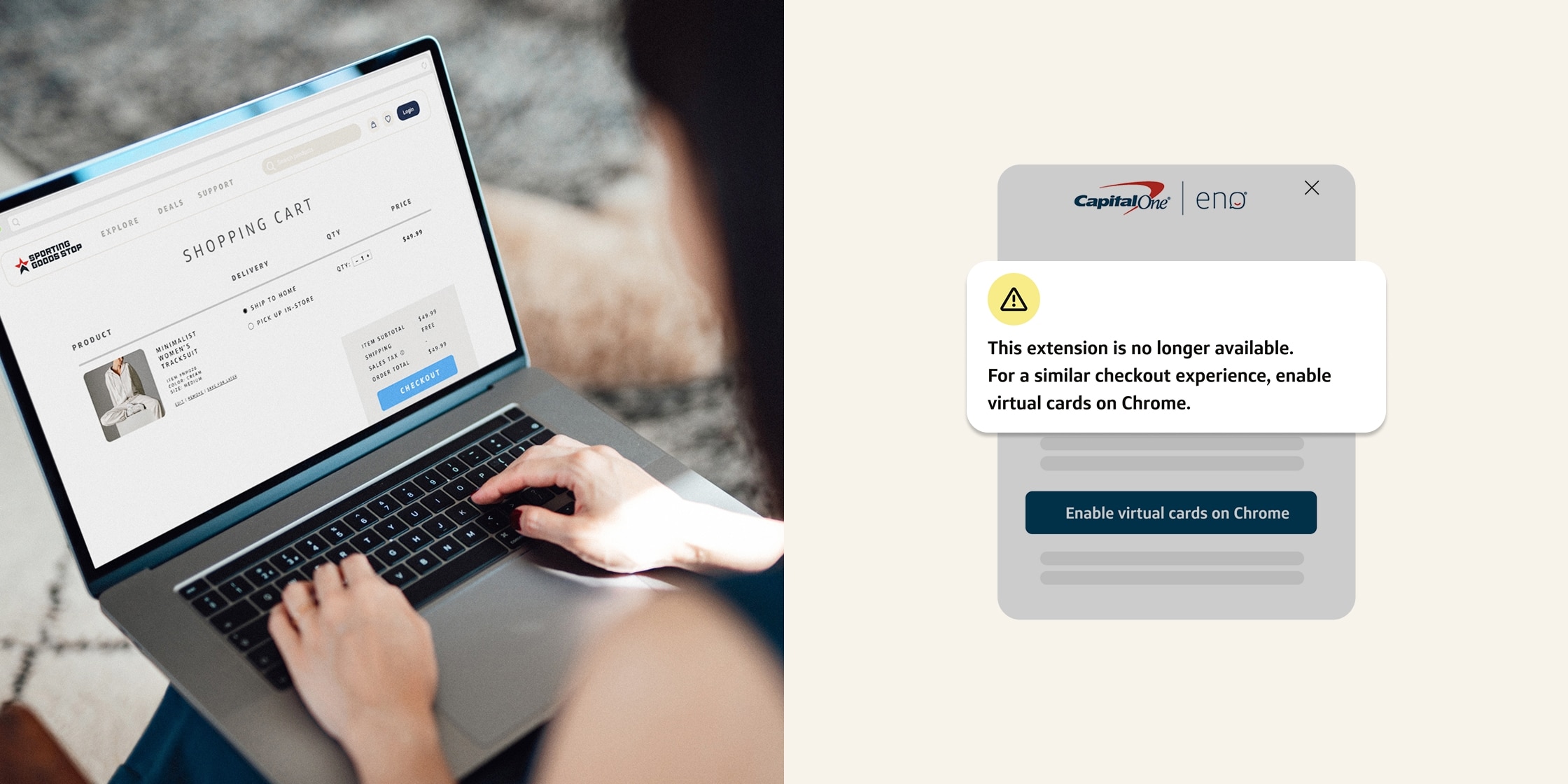
As of September 30, 2026, the Eno browser extension from Capital One is no longer be available. This means you’ll no longer be able to create virtual cards using Eno, and we recommend removing the extension from your browser. There are still other easy ways to create and use virtual cards with your Capital One card that offer a similar experience. Plus, the virtual cards you’ve created with Eno will stay active until they expire and can be accessed through your Capital One account.
Here’s everything you need to know about creating and managing virtual cards going forward.

How do you create a virtual card now that the Eno browser extension is being discontinued?
Capital One cardholders have two great alternatives to the Eno browser extension for creating and using merchant-specific virtual cards. Creating virtual cards with autofill on Chrome provides a similar experience to what you may be used to with the Eno browser extension. Another way to create virtual cards is through your Capital One account online.
Here’s a closer look at these two methods:
Create virtual cards with autofill on Chrome
If you enjoyed the convenience of having the Eno browser extension automatically fill in virtual card numbers at checkout, not to worry. Using virtual cards with autofill on Chrome creates a similar experience.
Here’s how it works:
- When you enter your eligible Capital One card details to check out on Chrome, follow the prompt to save your card to Google Wallet™ and enable virtual cards for future purchases. Or do this ahead of time by managing your payment methods on the Google Wallet website or through Digital Wallet Manager on your Capital One account online or on the mobile app.
- For each merchant you shop at online, Capital One provides a unique virtual card in real time. You can then find your virtual cards in Virtual Card Manager on your Capital One account online or on the mobile app.
- Now whenever you check out, Chrome will automatically fill in (but never store) the virtual card details.

Create virtual cards on the Capital One Mobile app or website
Another way to create new virtual cards is directly through your Capital One account online or on the app.
Sign in to your Capital One account and select Get your virtual card under your card’s account balance. From there, you can use the displayed virtual card anywhere you shop online, or you can scroll down and follow the prompts to create a merchant-specific virtual card. You can create new virtual cards for each place you shop online. Once created, you can copy your new virtual card’s information and then use it to pay online.
Where to find your existing Capital One virtual card numbers
You can find all your virtual card numbers, including those generated by Eno, by accessing the Virtual Card Manager through your Capital One account on the Capital One Mobile app or website.
How to uninstall the Eno browser extension
The best way to uninstall the Eno browser extension depends on which browser you use.
-
Google Chrome: You can manage or delete the extension directly on the Eno® from Capital One® Chrome Web Store page.
-
Mozilla Firefox: Head to the Eno® from Capital One® Firefox Add-ons page to remove it.
-
Microsoft Edge: Use the Eno® from Capital One® Microsoft Edge Add-ons page to uninstall it.
-
Safari: You can uninstall the extension via the settings menu by following these steps:
- In the menu bar at the top left, select Safari > Settings (or Preferences).
- Select the Extensions tab at the top.
- Find the Eno extension in the left sidebar and select its name.
- Select the Uninstall button in the main window.
Is Eno still available as a digital assistant?
Yes, although the Eno browser extension is being discontinued, your Capital One digital assistant Eno isn’t going anywhere. You’ll still be able to ask Eno questions about your account 24/7, get helpful spending insights and receive security alerts for suspicious activity.
Key takeaways: Discontinuation of the Eno browser extension
The Eno browser extension was discontinued on September 30, 2026. But eligible cardholders can enjoy a similar checkout experience by using autofill on Chrome, which still creates new virtual cards for their Capital One credit cards when they checkout online. Eligible cardholders may also create new virtual cards through their account on the Capital One Mobile app or website.
Eligible cardholders can manage all virtual cards, including the ones made with the Eno browser extension, through their online account. And your Eno virtual cards will continue to work through their expiration date.