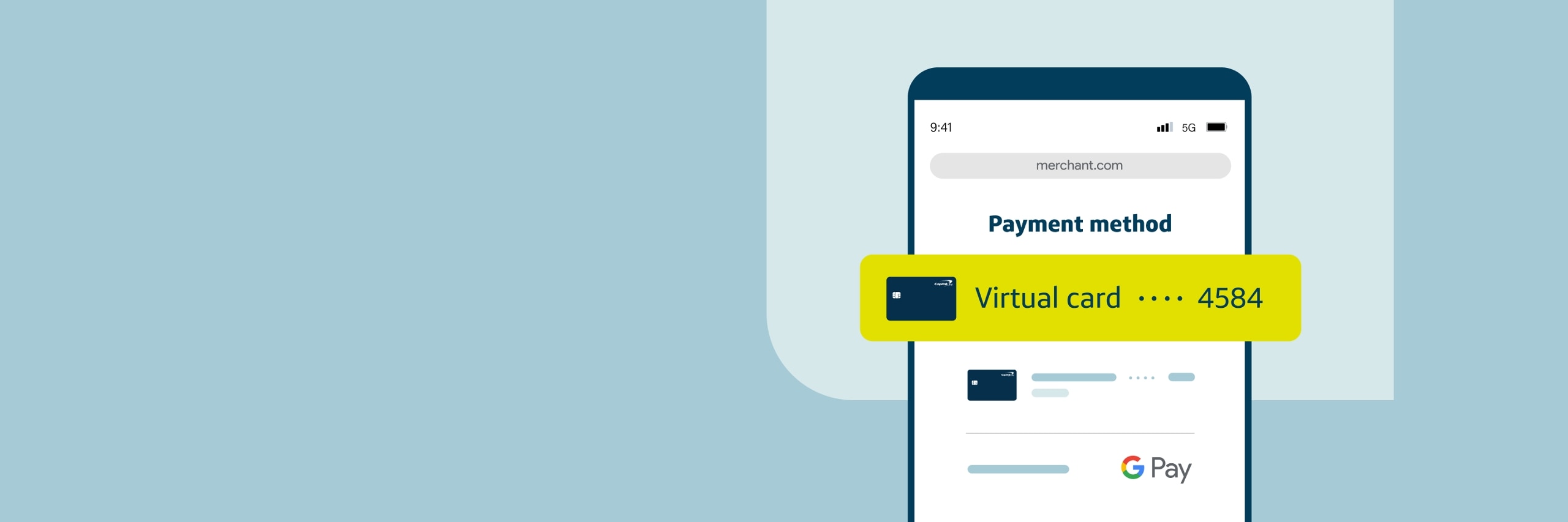
ADDED SECURITY, EASIER ONLINE SHOPPING

Added security
Shop online without sharing your physical card number with merchants.

Easier checkout
Your virtual card will automatically be filled in at checkout on Chrome and Android apps.

1-time setup
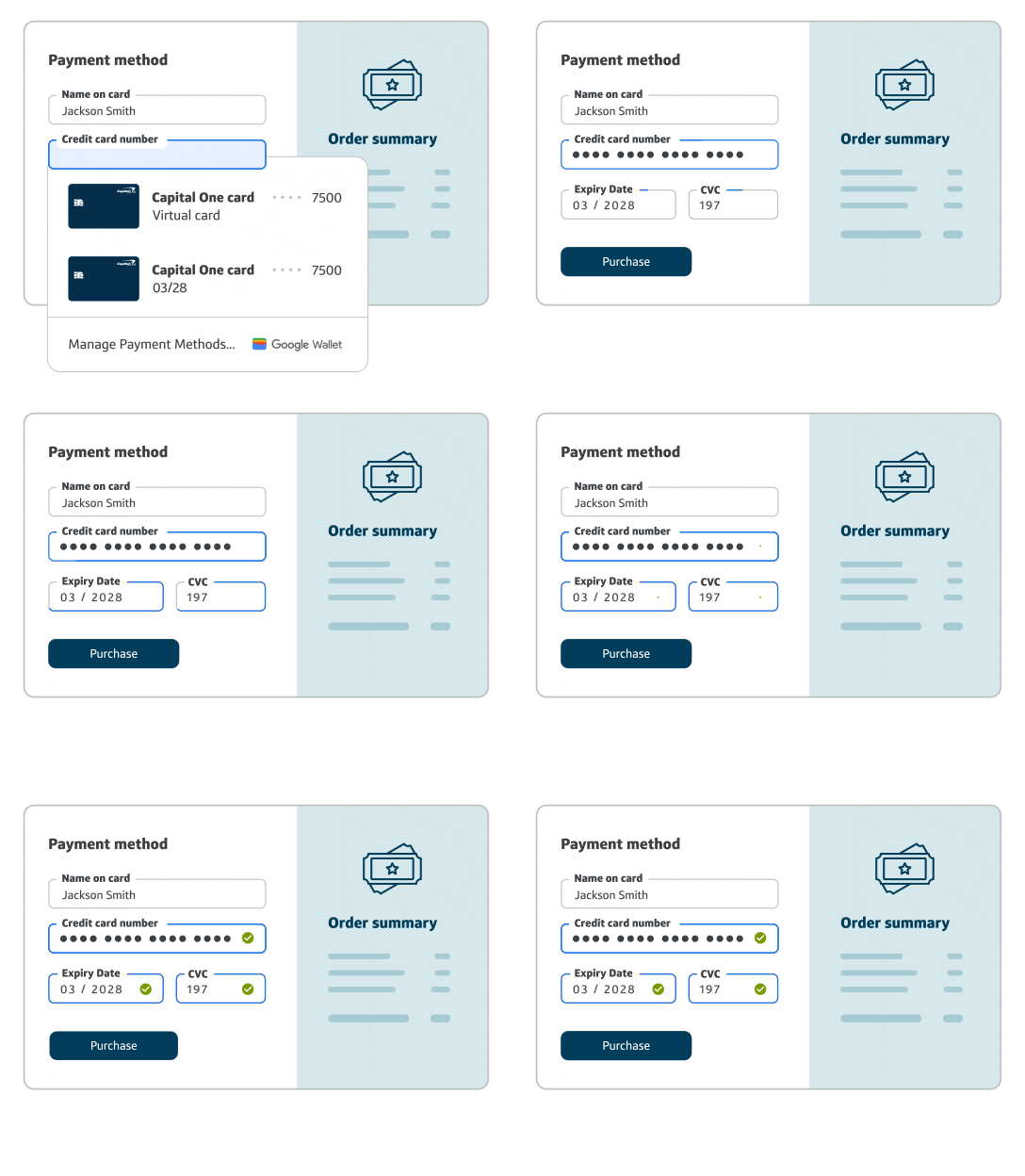
After you enroll, virtual cards will appear as a suggested payment method.
SHIELD YOUR PAYMENT INFORMATION
How do virtual cards work?
Virtual cards are unique card numbers linked to your credit card
account. Checking out online with virtual cards on Chrome and
Android apps is faster and comes with an extra layer of
security because you won’t share your physical card number
with merchants.
HOW TO GET STARTED
STEP 1
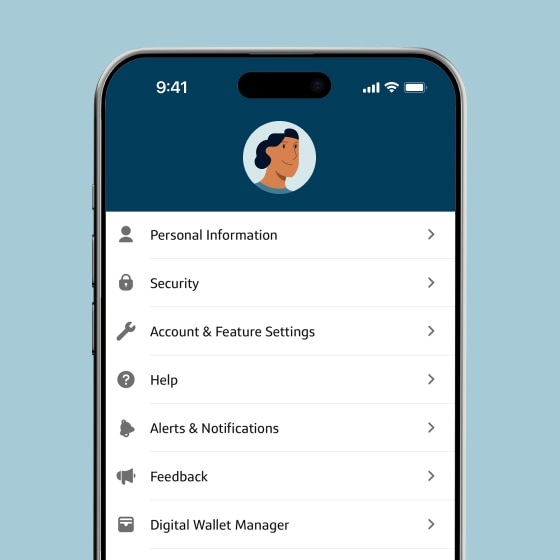
Open Digital Wallet Manager
In the Capital One Mobile app, select your profile icon and tap Digital Wallet Manager.
STEP 2
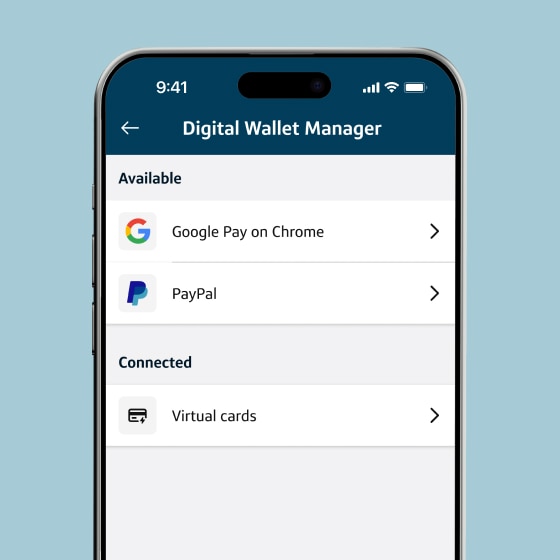
Add your card to Google Pay on Chrome
Select Google Pay on Chrome and follow the steps to connect your card.
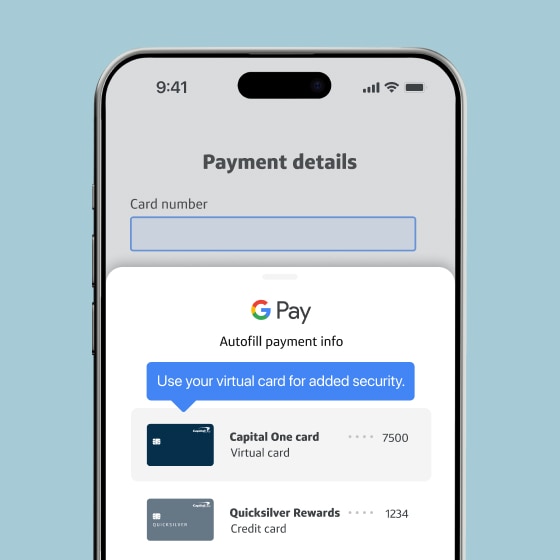
STEP 3
Select virtual card at checkout
When shopping on Chrome and Android apps, select your virtual card in the dropdown and your payment information will automatically be filled in.
FREQUENTLY ASKED QUESTIONS
What is Google Pay?
Google Pay is Google’s payment service—it’s what allows you to pay online or in stores with tap to pay using the payment methods you keep in your Google Wallet.
On what devices and browsers can I use virtual cards on Chrome and in Android apps to check out?
Virtual cards are currently available at online checkout on Chrome version 97+ for desktop computers (Mac, Windows and Linux), Chrome for Android and via merchant apps running in the Android OS and Chrome for iOS.
Which one of my Capital One cards can be enrolled as a virtual card in Google Wallet?
Enrollment for virtual cards in Google Wallet to use online with Google Pay is currently available for most Capital One credit cards. Debit cards and some credit cards may be ineligible at this time.
Will I continue to receive the same benefits and rewards from Capital One when I use virtual cards with Google Pay?
Yes, when you use virtual cards through Google Pay, you will still receive the same benefits and rewards from Capital One as you normally would. That’s because your virtual cards are linked to your Capital One credit card account and the transactions are still occurring on your Capital One card.